Install guide
About fifteen minutes. Nothing is installed into Windows, and nothing runs in the background: Parking by Dokaz runs only while its window is open.
1. Download and place the folder
- Go to the download page and enter your code. You get a file named
ParkingByDokaz-0.1.0.zip(the number may be newer). - Right-click the zip, choose Extract All, and extract it to
C:\. You now haveC:\ParkingByDokaz. - Do not leave the folder in Downloads, and do not keep it in OneDrive, Dropbox or Google Drive. Those can lock or overwrite the data files.
2. Set up the icon
- Open
C:\ParkingByDokazand double-click Setup-ParkingByDokaz.cmd. It puts a Parking by Dokaz icon on the desktop and changes no Windows setting. - If Windows shows a blue "protected your PC" screen, click More info, then Run anyway. This is normal for a file that was downloaded.
3. First start
- Double-click the Parking by Dokaz icon. A black window opens. That window is the app; closing it stops the app.
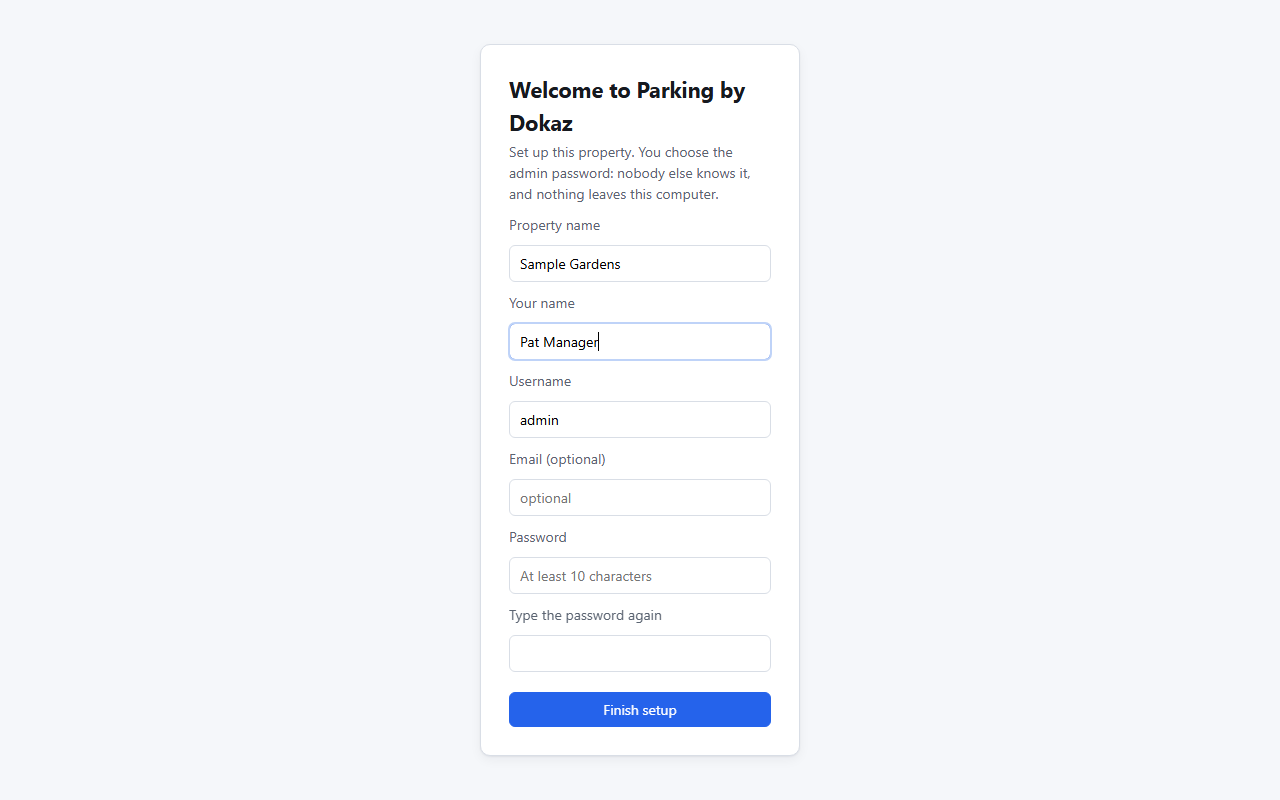
- Your browser opens Parking by Dokaz. Type the property name and choose your own administrator name and password. Keep the password somewhere safe: only you know it.
4. Follow the Getting started list
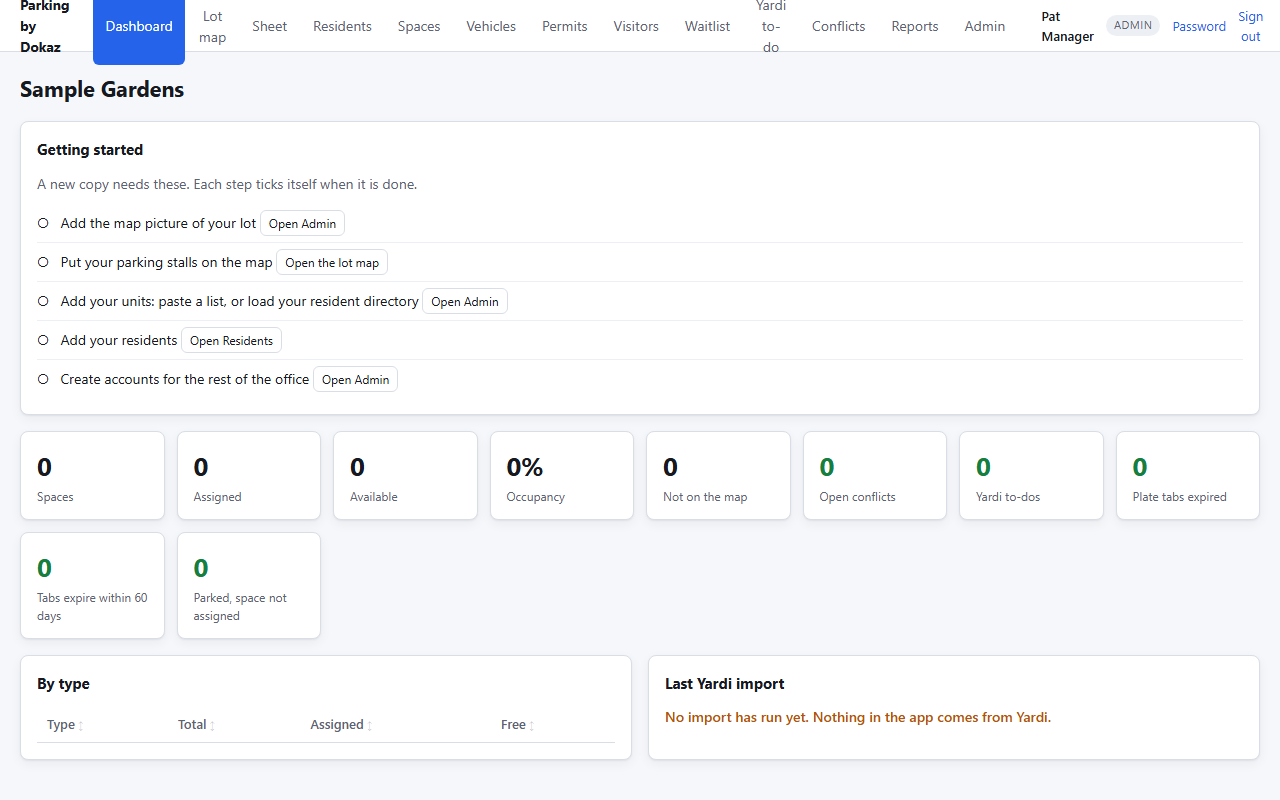
The Dashboard shows a checklist. Work down it:
- Map picture and stalls. We send you a map file ending in
.dokazpack. In Admin, choose Import a map pack, look at the preview, and apply it. - Units. Add your building and unit numbers (a range such as A101-A104 works).
- Residents and assignments. Import your spreadsheet, or add people one at a time.
- Accounts for the rest of the office. Each person gets their own sign-in.
5. Use it from other computers and phones
On the office wifi, other devices can open Parking by Dokaz too. In the app, go to Admin and find Connect phones and other computers. It shows an address and a code to scan with a phone camera. If a device cannot connect, Windows may need to be told to allow it; the same panel shows the exact command and the command that undoes it.
Looking after it
- Backup: Admin, Download a backup. It is one file. Keep it somewhere private, not on the same computer only.
- Restore: close the app, then in PowerShell in
C:\ParkingByDokazrun.\Restore-ParkingByDokaz.ps1 -Source "C:\path\to\the-backup.zip" - Update: close the app, download the new version, then in PowerShell in
C:\ParkingByDokazrun.\Update-ParkingByDokaz.ps1 -Zip "C:\path\to\the-new-download.zip". It backs up first and checks the result. - Forgot the administrator password: in PowerShell in
C:\ParkingByDokazrun.\Reset-AdminPassword.ps1. - Remove it: close the app, run
.\Uninstall-ParkingByDokaz.ps1to remove the desktop icon, then delete the folder. Your data is thedatafolder inside it.
If something is wrong, open Admin, choose Show diagnostics, and send us that text. It holds versions and counts only, with no names, plates or notes.